

Online ring sizer
Online ring sizer
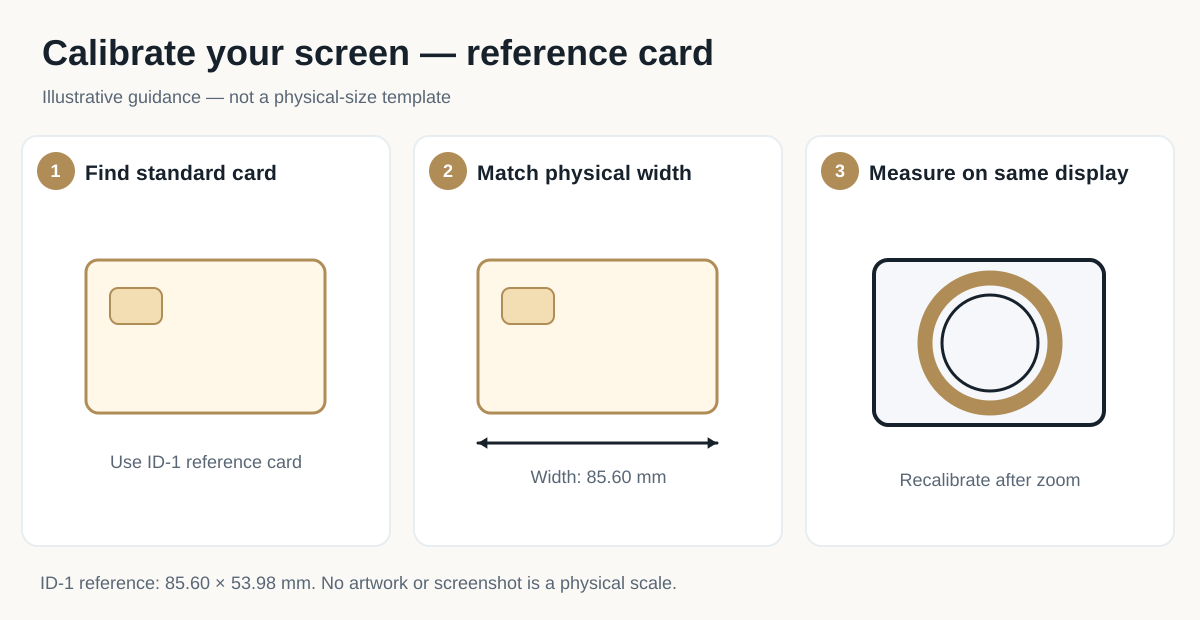
You already own a ring that fits. Calibrate your screen with a bank card, place the ring flat on the display, and match the circle to the ring's inner edge.
Calibrate with a card
Hold a standard bank card flat against the screen. Adjust the rectangle until its edges line up with the card's edges. A tilted card, or a card held away from the screen, will give a wrong size.
Place the ring on the screen
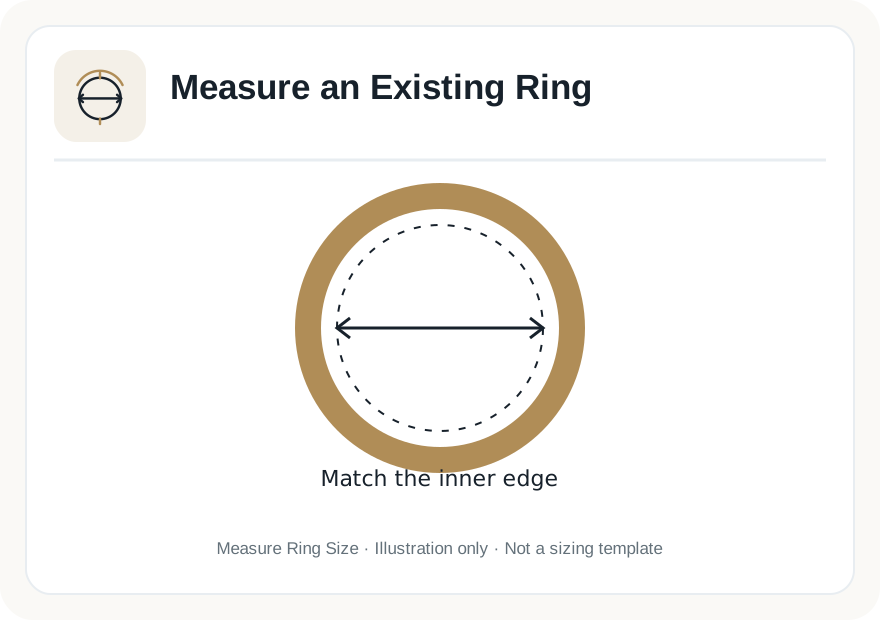
Lay the ring flat on the display, centred on the circle. The circle must follow the ring's inner edge — the hole you put your finger through — not the outer edge of the band.
Adjust, then read the result
Use the slider, the step buttons, or the fine 0.1 mm controls until the circle sits exactly on the inner edge. The diameter, circumference and sizes update as you adjust.
Dashed line: your card. Solid line: the rectangle. They must coincide.
The dark line is the measurement. The gold band is the ring itself.
Step 1 — Calibrate with a bank card
Step 1 of 2
Place a real bank card flat against the screen. Adjust the rectangle below until its edges line up with the card. The rectangle's height follows the card's proportions automatically, so matching the width also checks the height.
If the rectangle is wider than your screen, rotate to landscape or use a larger screen — do not guess the card's width.
No size is shown until you confirm calibration. Skipping calibration would produce a fabricated result, so the tool refuses to guess.
Step 2 — Match the circle to the ring's inner edge
Step 2 of 2
Diameter and circumference appear here once calibration is confirmed.
Enter a diameter in millimetres, then Apply. It must be inside the chart range (12–24 mm).
Why you can trust this result
- Calibration uses a standard bank card (85.6 mm wide, ISO/IEC 7810 ID-1) — a physical reference, not a guess about your screen.
- Your measurement is calculated in your browser and is not sent to a server. There is no account, and analytics runs only if you consent to it.
- Results are guidance, not a guarantee. For an expensive or hard-to-resize ring, confirm with a professional fitting.
Related guides
- Ring size calculator
Already have a number? Type a diameter or circumference instead.
- How to measure ring size at home
Paper strip and existing-ring methods, step by step.
- Measurement methodology
Geometry, calibration, zoom handling, and what is not yet verified.